HEIC to JPG & PNG Converter
Convert HEIC and HEIF photos to JPG or PNG directly in your browser.
Output format
Broad compatibility with adjustable quality.
Output
Broad compatibility
JPG output with adjustable quality. Transparent areas use the selected background.
JPG quality
90%Manually adjusted quality.
Transparent area background
JPG cannot preserve transparency. Transparent areas use the selected background.
Watermark
Optionally add your own PNG, JPG or WebP image watermark. Everything stays local in your browser.
FROM THE FORGE
Convert HEIC and HEIF images directly in your browser
PixelSmithery HEIC to JPG & PNG Converter turns HEIC and HEIF photos into widely compatible JPG or PNG files directly in your browser. Process a single image or an entire batch, choose the output format you need and adjust JPG quality without sending your photos to a PixelSmithery conversion server.
HEIC is an efficient format commonly used by iPhone and other modern devices, but it is not supported equally by every website, application or image editor. Converting a HEIC image to JPG or PNG gives you a more widely compatible copy while leaving the original file unchanged on your device.
Convert HEIC to JPG
Choose JPG when you need a practical format for photographs, websites, documents, email or everyday sharing. JPG offers broad compatibility and adjustable quality, allowing you to balance image detail and output file size.
Convert HEIC to PNG
Choose PNG when lossless output or transparency is more important than file size. PNG preserves image data without additional lossy compression, although photographic images can become considerably larger than the original HEIC file.
Private browser-based conversion
Your HEIC and HEIF images are processed locally in your browser. The selected photos do not need to be uploaded to a PixelSmithery conversion server, and the original files remain unchanged on your device.
Understanding HEIC and HEIF
HEIF stands for High Efficiency Image File Format and describes a modern format family designed to store high-quality image content efficiently. HEIC is the file extension most users encounter when working with HEIF-based photographs, particularly images created by Apple devices such as the iPhone.
A typical photograph may therefore appear as IMG_1234.HEIC instead of a traditional .JPG file. HEIC can provide excellent image quality while using storage space efficiently, but compatibility is still not as universal as JPG or PNG.
This is where conversion becomes useful. You can keep the original HEIC file for storage or use on compatible devices while creating a separate JPG or PNG version for software, websites or workflows that require a more widely supported format.
Why convert HEIC to JPG?
JPG remains one of the most widely supported image formats and is particularly well suited to photographs. It works across websites, office documents, presentations, email, social platforms and most image-editing software.
Because JPG uses lossy compression, PixelSmithery gives you control over the output quality. Higher quality generally preserves more visual detail but creates a larger file, while a lower quality setting can reduce the output size.
For most photographs, JPG offers the best balance between compatibility, visual quality and manageable file size. If you later need a smaller, web-friendly version of the converted image, you can use the JPG & PNG to WebP Converter.
Why convert HEIC to PNG?
PNG uses lossless compression and is useful when preserving image data is more important than keeping the file compact. It can also preserve transparent areas when transparency is present in the decoded HEIC or HEIF source.
The trade-off is file size. A photographic HEIC image converted to PNG can become several times larger than the original file. This is expected and does not indicate a conversion problem.
If the image is primarily a photograph and file size matters, JPG will usually be the more practical choice. If you want to inspect available metadata or provenance signals in the original or converted image, you can also use the AI Image Checker.
Why can HEIC files be much smaller than PNG?
HEIC is designed to store photographic information efficiently. A high-resolution HEIC photograph can therefore require considerably less storage space than the same decoded image saved as a lossless PNG.
PNG preserves image information without photographic lossy compression, so a conversion from HEIC to PNG may produce a much larger file.
The increase in size reflects the different way the two formats store image data rather than a loss of efficiency in the conversion process.
Batch conversion and browser safety
PixelSmithery can process multiple HEIC and HEIF images in the same session, making it easier to prepare a collection of phone photographs for websites, documents or other applications.
High-resolution image decoding can require significantly more memory than the compressed HEIC file size suggests. For this reason, the converter uses fixed limits for the number of files, individual file size and total processing load to help keep browser performance stable.
Completed images can be downloaded individually or collected in a ZIP archive when working with a batch.
Your original files stay unchanged
PixelSmithery does not overwrite or replace the HEIC or HEIF files on your device. The converter reads the selected image locally, creates a new JPG or PNG output and leaves the original source file intact.
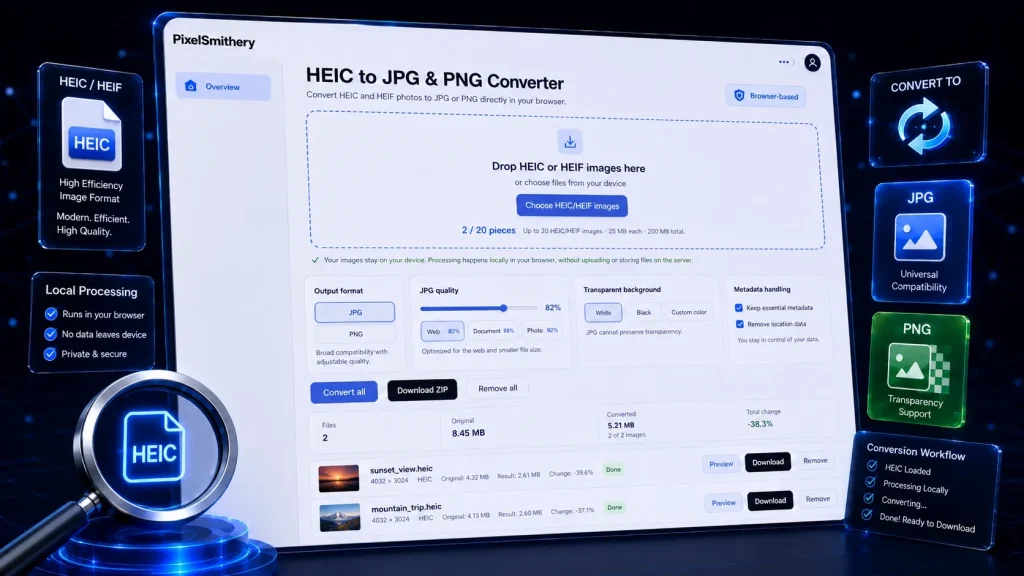
in your browser with PixelSmithery.
HEIC to JPG & PNG Converter FAQ
What is a HEIC file?
HEIC is a modern image format commonly used by iPhone and other compatible devices to store high-quality photographs efficiently. It belongs to the broader HEIF format family and can provide smaller file sizes than traditional image formats while maintaining good visual quality.
What is the difference between HEIC and HEIF?
HEIF stands for High Efficiency Image File Format and refers to the broader image format family. HEIC is the file extension most commonly encountered for HEIF-based photographs, particularly those created by Apple devices. PixelSmithery supports both HEIC and HEIF input files.
How do I convert HEIC to JPG?
Add your HEIC or HEIF image to the converter, select JPG as the output format and choose the quality setting you prefer. Select Forge or Forge all to process the image, then download the resulting JPG file when forging is complete.
Should I convert HEIC to JPG or PNG?
Choose JPG for photographs, broad compatibility and generally smaller output files. Choose PNG when lossless output or transparency is more important than file size. For most everyday photographs, JPG is the more practical choice.
Why is my PNG file much larger than the original HEIC?
HEIC uses highly efficient compression designed for photographic images, while PNG uses lossless compression. A high-resolution HEIC photograph can therefore become several times larger when converted to PNG. This is expected behaviour and does not mean that the conversion failed.
Can I convert multiple HEIC images at once?
Yes. PixelSmithery supports batch conversion of multiple HEIC and HEIF images within the converter’s browser-safety limits. Completed files can be downloaded individually or together as a ZIP archive.
Are my HEIC photos uploaded to a server?
No. Your selected HEIC and HEIF images are processed locally in your browser and do not need to be uploaded to a PixelSmithery conversion server. The source images remain on your device during the conversion process.
Does PixelSmithery change my original HEIC file?
No. Your original HEIC or HEIF file remains unchanged. PixelSmithery creates a separate JPG or PNG output file that you can download and use independently.
Can I adjust JPG quality?
Yes. When JPG is selected as the output format, PixelSmithery provides adjustable quality controls and predefined quality options. Higher settings generally preserve more visual detail, while lower settings can help reduce the output file size.
Does HEIC to PNG preserve transparency?
PNG can preserve transparent areas when transparency is present and available in the decoded HEIC or HEIF source. JPG does not support transparency, so transparent areas use the selected background colour when exported as JPG.
Is the HEIC to JPG & PNG Converter free?
Yes. PixelSmithery HEIC to JPG & PNG Converter is free to use and does not require a paid conversion API or account for the browser-based conversion process.
Do I need to install HEIC conversion software?
No. The converter runs directly in a compatible web browser, so no additional desktop conversion software is required.